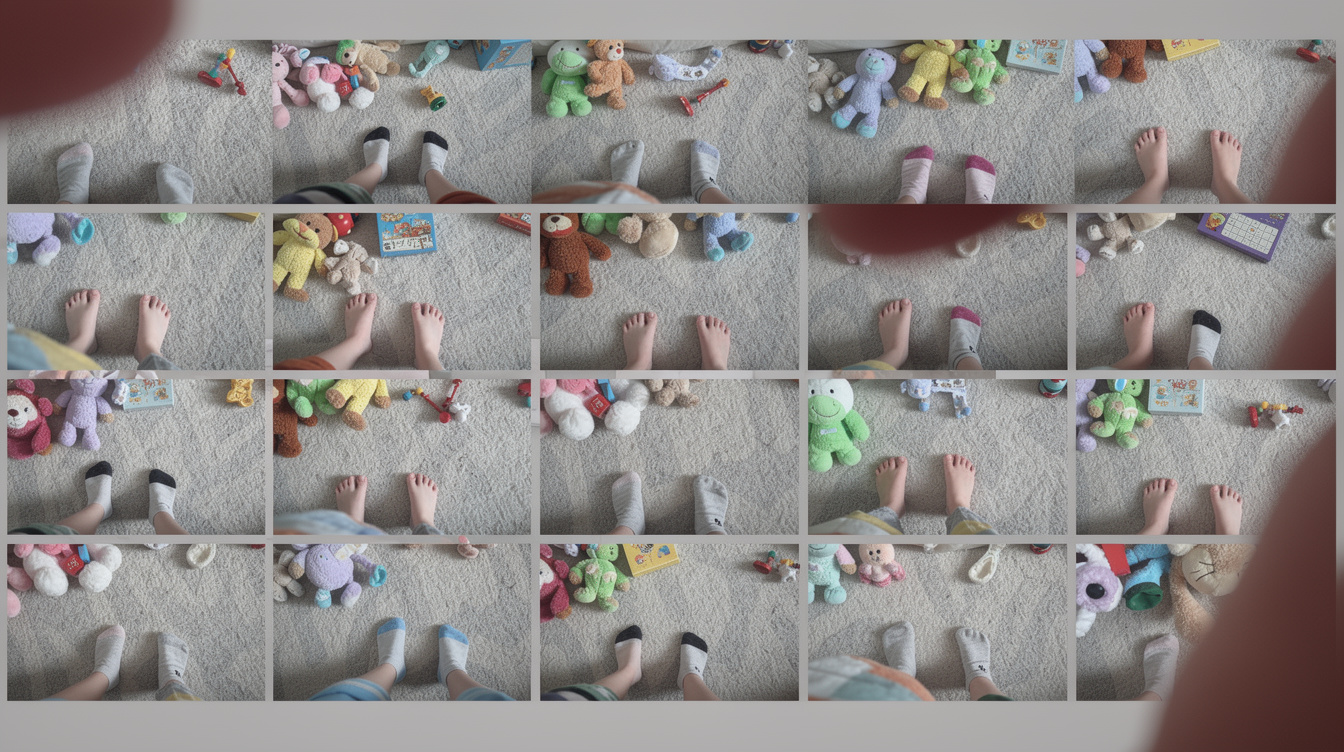
The average iPhone camera roll holds somewhere between 2,000 and 17 billion photos. Seventeen nearly identical shots of a birthday cake. A blurry video of first steps that somehow still makes you cry. Four hundred photos from a single beach trip in 2023. And now it's time to upgrade your phone! What do you do with all those photos?
Back Up to Your Computer (the old-fashioned way)
Plugging a phone into a laptop and copying photos over isn't exciting, but it works. On a Mac, Image Capture or the Finder handles it. On Windows, the phone shows up as a drive and you drag files over. Takes maybe 20 minutes for a few thousand photos if you haven't done it in a while.
The downside is that "backed up to my laptop" is only as reliable as the laptop. Hard drives fail too. And let's be honest, are you really going to go scroll through all of those on your computer?
Cloud storage (Google Photos, iCloud, Amazon Photos) adds a second layer. Google Photos gives 15GB free before it starts charging. iCloud's 5GB free tier fills up embarrassingly fast if you're shooting video. These services are good for raw backup, though they're not great at helping you find anything specific later.
Transferring Photos When You Get a New Phone
Of course you can just transfer your huge photo library to your new phone.
The safest approach is backing up everything to cloud storage before the switch, then restoring on the new device. Both Apple and Google have official migration tools (Quick Start for iPhone, Google's Switch to Android app) that handle most of it. The step people skip is verifying the transfer worked before wiping or selling the old phone. Keep the old phone active for at least a week after switching. Check that the photos are actually there.
The Part That Backup Alone Doesn't Solve
Having 8,000 photos backed up is better than losing them. But it still leaves a parent with 8,000 unorganized photos and no way to find the ones that actually matter.
That's where something like Keepsies fits differently. Instead of treating every photo as equal, it's built around capturing the moments worth holding onto, with context attached. A photo of a first loose tooth means more when there's a note next to it about what your kid said when it happened. A picture of a drawing means more when there's a title and an age saved alongside it. Keepsies handles milestones, everyday memories, kids' artwork, and the things they say, all in one place.
Uploading photos to Keepsies takes seconds. Open the app, pick the memory type, add the photo, drop in a note. The whole entry takes less time than finding the photo again later would have.
Working Through a Big Camera Roll
For parents staring down thousands of photos with no idea where to start, trying to organize everything at once is a trap. A better approach is chunking it.
- Pick one time period, maybe the last 6 months, and go through just that.
- Flag the photos that actually mean something (the rest can stay in cloud backup where they belong).
- Add those flagged photos to Keepsies with a quick note while the memory is still close enough to remember.
Doing this for 30 minutes on a Sunday moves the needle faster than waiting for a free afternoon that never arrives. The goal isn't a perfect archive. It's making sure the photos that actually matter have enough context attached that they'll still make sense in 20 years.
A camera roll full of every photo is a backup. A memory journal is the thing you'll actually want to open when your kid turns 18.
The phone will eventually die. What's on it doesn't have to.
Start capturing moments that matter
Keepsies is a free memory journal for parents. Milestones, quotes, artwork, and everyday moments — saved in seconds, kept forever.
From The Keepsies Team